
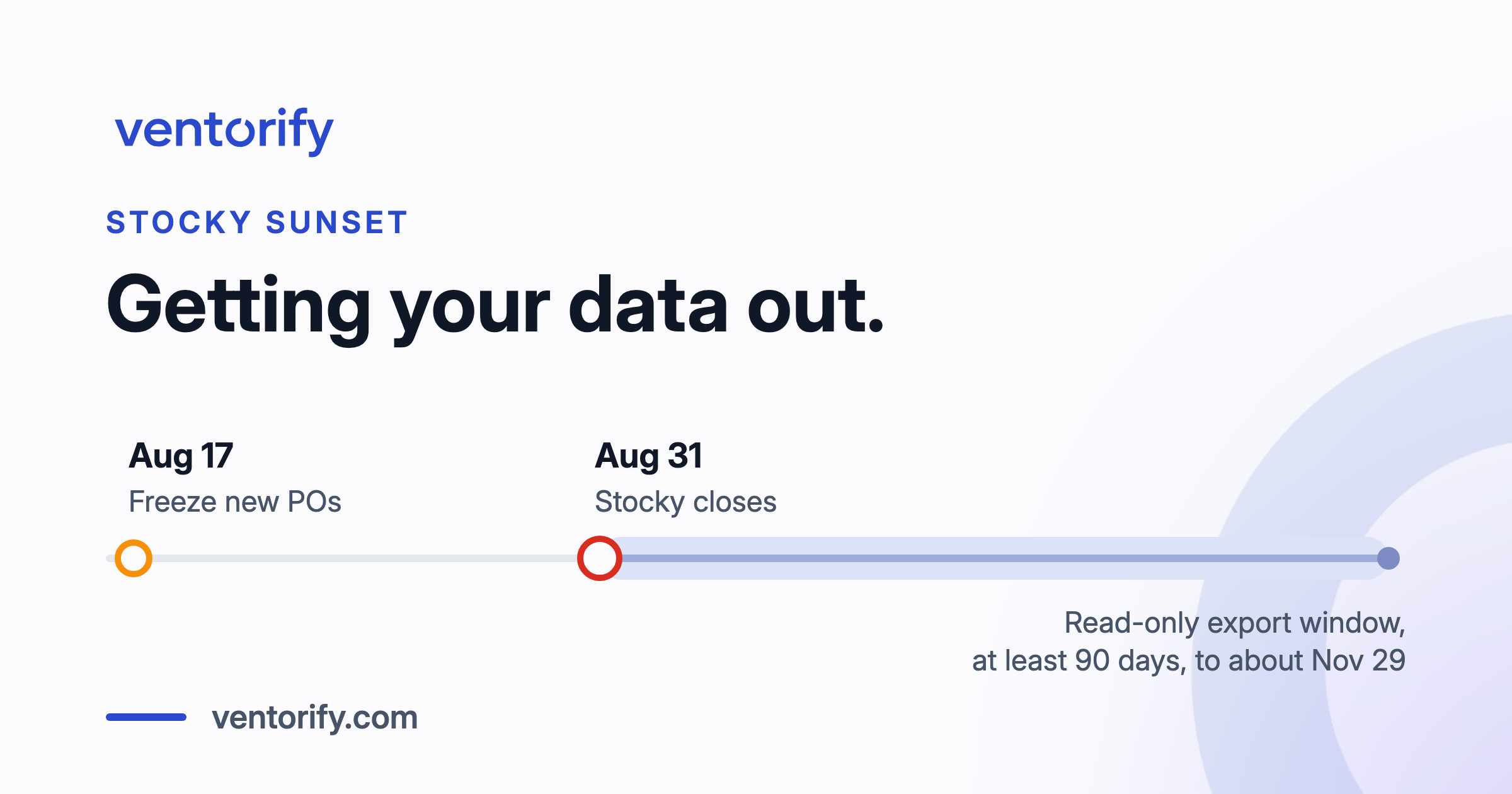
Stocky closes on August 31, 2026. The part that catches people out is not that the app goes away. It is that the purchase order history goes with it.
Shopify built both Stocky and the native inventory tools, so it is reasonable to assume the records move across when one replaces the other. They do not, and the gap is wider than most merchants expect.
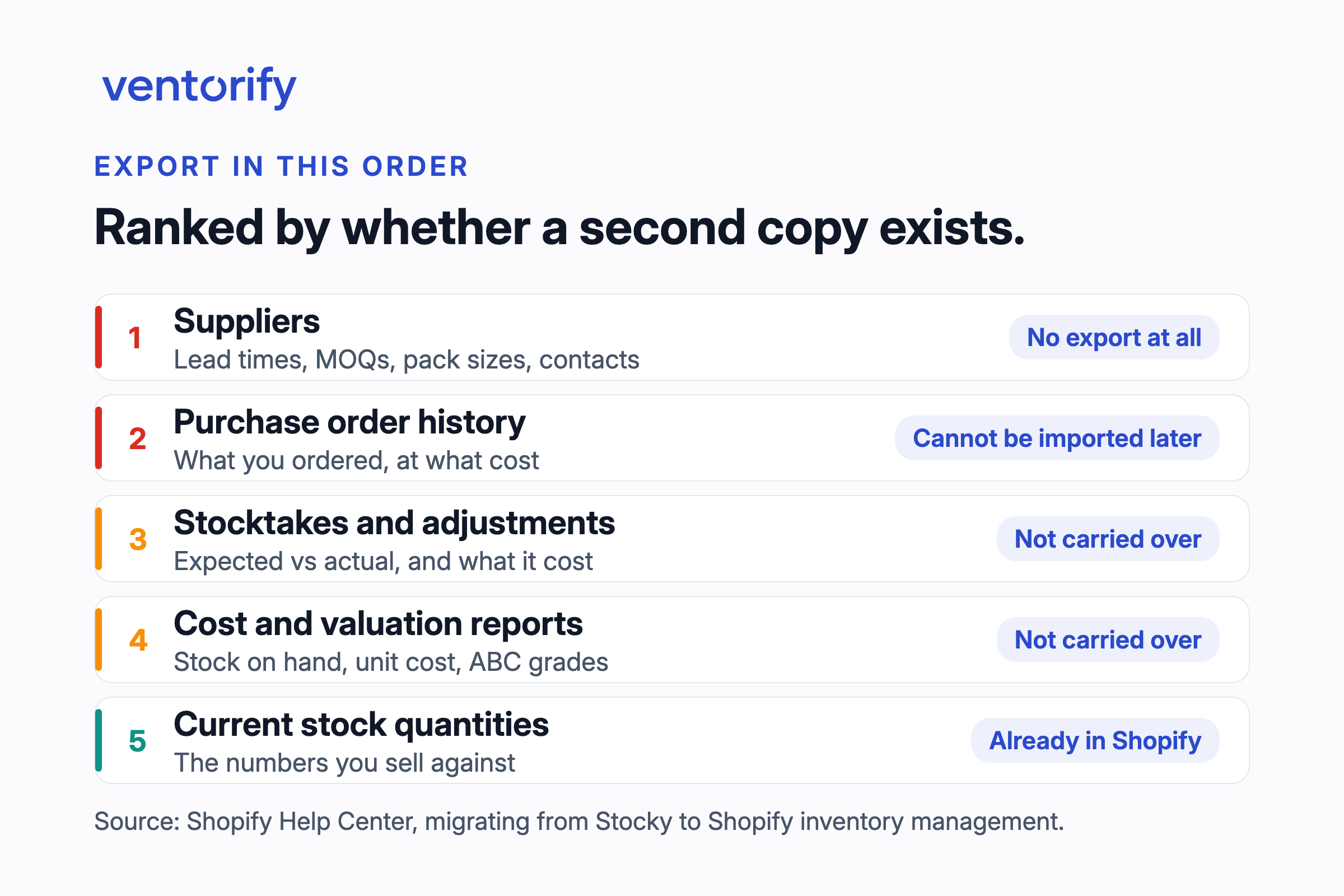
What follows is the export procedure, ordered by how recoverable each dataset is rather than by where it sits in the Stocky menu. Every step in it belongs to Stocky or to Shopify.
Key Takeaways
- Stocky stops working after August 31, 2026. Shopify then gives read-only access to export your data for at least 90 days, which reaches roughly the end of November 2026.
- Historical purchase orders and stocktakes do not move into Shopify automatically, and historical purchase orders cannot be imported later.
- Suppliers cannot be exported from Stocky at all. Lead times, minimum order quantities and pack sizes have to be copied out by hand.
- There is no "export everything" button. Purchase orders come out one at a time.
- The purchase order freeze date has already passed. If orders are still being raised in Stocky, stop now, and close every in-transit one before August 31.
- Do not uninstall Stocky to tidy up. It cannot be reinstalled, and uninstalled data may not come back.
What actually happens on August 31, 2026
After August 31, 2026 you can no longer use Stocky to manage inventory, and any Stocky APIs stop working on the same day (Shopify Help Center). What follows is a grace period, not a reprieve: Shopify says you will have read-only access to export your data for at least 90 days after that date.
Read that as a floor, not a promise. Ninety days from August 31 reaches the end of November 2026, and the window assumes you can still sign in and that the export controls you need still work in a read-only app. Treat it as a safety net for the file you forgot, not as the plan.
One more thing sets the shape of the whole exercise. Stocky is no longer available to install from the Shopify App Store (Shopify Help Center). Whatever you do between now and the end of November is a one-way door.
What moves to Shopify by itself, and what does not
Your live inventory quantities are already in Shopify and stay there, because that is where Stocky read and wrote them. History is the part that does not follow.
Shopify states it plainly: "Your historical data in Stocky, such as old purchase orders and stocktakes, won't automatically move into Shopify after August 31, 2026." The harder line sits further down the same page. Historical purchase orders cannot be imported into Shopify (Shopify Help Center). There is no later rescue, no importer, and no support ticket in December that puts three years of ordering back where you can search it. Shopify's own stated reason to act now is tax and audit records.
Shopify's purchase orders do take a CSV, which makes it tempting to assume the exports you are about to make can simply be loaded back in later. They cannot. Shopify documents that the native CSV upload only adds product line items to a new draft purchase order, and that it cannot import past purchase order statuses, received quantities or supplier links. The CSV builds a new order. It does not restore an old one.
| Data | Moves by itself? | Export path |
|---|---|---|
| Current stock quantities | Yes, they already live in Shopify | Nothing to do |
| Historical purchase orders | No, and cannot be imported later | Download, one PO at a time |
| Stocktakes and adjustments | No | CSV per stocktake, plus the Adjustments report |
| Cost and margin reports | No | Reports menu, one report at a time |
| Transfers | No | Transfers report |
| Suppliers | No | None. Copy them out by hand. |
That last row is why the order of work below is not the order of the menu. Work down this list, because the top of it has no second copy anywhere.
Start with suppliers, because Stocky will not export them
Suppliers cannot be exported from Stocky. Shopify says so in the migration guidance (Shopify Help Center), and it is the only dataset here with no export path at all.
Open Stocky next to a blank spreadsheet and copy. For each supplier, capture at least:
| Field | Why it matters after the switch |
|---|---|
| Supplier name, contact, email, phone | The one part most merchants can rebuild from their inbox, so do it fast and move on |
| Address and currency | Needed on the first purchase order you raise anywhere else |
| Payment terms | Rarely written down anywhere except the app |
| Lead time in days | Without it, your first reorder date after the switch is a guess |
| Minimum order quantity | Without it, your first order can come back rejected or rounded up |
| Pack or case size | The difference between ordering 24 and ordering 2 |
| Cost price per SKU, per supplier | Your margin reporting depends on it |
Lead time, minimum order quantity and pack size are the three fields people skip, because they feel like settings rather than records. They are the fields that hurt in the first ordering cycle after the switch, when the question stops being "what did we pay" and becomes "when do I place this and how many".
If the list is long, work through the suppliers you order from monthly first and let the dormant ones wait. A supplier you last used in 2024 is a phone call to rebuild. A supplier you order from every three weeks is a workflow.
Export your purchase orders, one at a time
There is no bulk export. Each purchase order comes out of its own page, and that is the single fact that decides how long this job takes you.
In your Shopify admin, go to Apps > Stocky > Purchases, open the purchase order, then click Download and pick a format. Stocky offers PDF, Plain Text, CSV, and CSV for Dymo (Shopify Help Center).
There is a second route that is faster on a long list. Open the purchase order, click Send, tick Attach CSV, and email it to yourself. You end the session with a mail folder you can search by supplier name instead of a downloads folder full of files called Download.
On format: keep CSV for anything you will use as data again, because unit costs, quantities and supplier names in a spreadsheet can be sorted and totalled. Keep PDF for anything an accountant may need to read as a document. Keeping both for recent orders costs nothing but clicks.
On depth: a shop with several hundred purchase orders needs to decide how far back is worth keeping, and that is not a ten minute decision. Set the line by your own record-retention obligation rather than by convenience, because in most jurisdictions it runs longer than people assume, and Shopify's stated reason to export at all is tax and audit records. If that obligation reaches back further than your patience does, the Purchase Orders report below is a summary you can keep in one file instead of a hundred.
Export your stocktakes and adjustments
A stocktake in Stocky is a stock adjustment, and you export it from that screen: click CSV, or Download > CSV, during the adjustment (Shopify Help Center). Do it while the count is in front of you, because Shopify's own note on that page is that Stocky does not save historical inventory data. The CSV is the record.
The file carries ten columns: product name, SKU, barcode, Shopify ID, listed retail price, cost price, expected stock, actual stock, adjustment totals, and adjustment costs.
Look at what that combination gives you, because Shopify will not reconstruct it. Shopify's inventory history shows that a quantity changed. The stocktake CSV shows what you expected to find, what you actually found, and what the difference was worth at cost, on a given day. That is your shrinkage record. If anyone has ever asked you what your count variance costs per quarter, this file is the only place the answer lives.
Export the reports that hold your cost and demand history
The Reports menu is the only copy of several things Shopify never had. In your Shopify admin, go to Apps > Stocky, then pick a report from the Reports drop-down.
Shopify documents thirteen report types (Shopify Help Center): ABC analysis, best sellers, low stock (which comes in vendor, product and variant versions), orders, products, purchase orders, sales items, SKU and variant, statistics, stock on hand (current and historical), adjustments, transfers, and profit.
Not all of them are worth your remaining evenings. These are:
- Stock on hand, current and historical. Your inventory valuation over time. Nothing in Shopify reproduces the historical view.
- SKU and variant. Cost, price and sales data per variant, including average unit cost. This is the input to every margin question you will be asked later.
- Purchase orders. One summary of what you ordered and its delivery status, which is the cheap substitute for downloading older orders individually.
- ABC analysis. How Stocky graded your catalogue by sales history. Useful as a baseline to compare against whatever grades your products next.
- Adjustments and transfers. Movement history, and the companion to your stocktake files.
One honest caveat. Shopify's documentation describes what each report shows, but it does not spell out an export control for every single report type. Expect to open each report and look for the download rather than assume a CSV is waiting. Where there is no export, a screenshot or a copy and paste into a spreadsheet is still worth more than a report you can no longer open in December.
Close out open purchase orders before the deadline
Shopify's migration preparation puts the purchase order freeze about 14 days before August 31, 2026, which puts it on August 17, and asks you to receive and close all open, in-transit purchase orders in Stocky before the deadline (Shopify Help Center). So the calendar had two dates on it, not one, and the first has gone.
If new purchase orders are still being raised in Stocky, stop today and raise them in Shopify instead. The half of this that still has a deadline in front of it is closing the open ones, and that is the more urgent job. An open, in-transit purchase order on the last day is a delivery you will be receiving into an app that no longer exists, and it will not move across for you.
Two things belong in the same pass:
- Delete Stocky's Transfers extension from your POS Smart Grid. It is on Shopify's own preparation list, and it stops a staff member tapping a tile that leads nowhere on September 1.
- Tell the people who actually receive stock. This is the step that fails when only the owner knows about it. Somebody in the back room raises a purchase order in Stocky this week because that is what they have always done, and now there is an order in a dying app with nobody watching it.
Where to put the files, and the one action that can cost you the lot
Do not uninstall Stocky. Shopify warns that data from an uninstalled Stocky app might not be retrievable when you reinstall the app, and Stocky can no longer be installed from the Shopify App Store, so there may be no reinstall to attempt (Shopify Help Center).
Those are two separate sentences in Shopify's documentation and they are worth reading together. Removing an app you have finished with is ordinary housekeeping. Here it can put your only copy behind a reinstall that is no longer available to you. Leave it in place until the read-only window closes on its own.
Three habits make the difference between having exports and having usable exports.
Store them somewhere that is not a laptop. A shared drive, your accounting system, anywhere with a backup and with access that survives somebody leaving the business. These files answer questions eighteen months from now.
Name them date first. Something like 2026-08-10_stocky_po_1042.csv sorts correctly and survives being dragged into a folder with a thousand others. A folder of files called export (3).csv is a folder you will not open.
Open two or three of them. Confirm there are rows underneath the header. A download that produced a header row and nothing else looks exactly like a successful download from the outside, and you will not find out otherwise until you need the data.
Frequently asked questions
What happens to my Stocky data after August 31, 2026?
You get read-only access to export it for at least 90 days after that date, so roughly to the end of November 2026 (Shopify Help Center). Stocky itself can no longer be used to manage inventory after August 31, and any Stocky APIs stop working the same day.
Will my Stocky purchase orders move into Shopify?
No. Shopify states that historical data such as old purchase orders and stocktakes will not automatically move into Shopify, and that historical purchase orders cannot be imported into Shopify at all. Export anything you need for tax or audit records before the sunset.
Can I export my supplier list from Stocky?
No. Suppliers cannot be exported from Stocky. Copy them into a spreadsheet by hand, and make sure you capture lead time, minimum order quantity and pack size alongside the contact details.
Is there a way to export everything at once?
No. Purchase orders are downloaded from their own pages one at a time, and reports are run individually from the Reports menu. Budget the time accordingly rather than leaving it to the last weekend.
Should I uninstall Stocky once I have my exports?
No. Stocky cannot be reinstalled from the App Store, and Shopify warns that data from an uninstalled app might not be retrievable on reinstallation. Leave it in place until the read-only window closes.
Do these six things, in this order
- Copy your suppliers into a spreadsheet, with lead times, minimum order quantities and pack sizes. Nothing exports this for you.
- Download your recent purchase orders, CSV for data and PDF for the record.
- Export your stocktakes to CSV, plus the Adjustments and Transfers reports.
- Run the reports that hold cost and valuation history: stock on hand, SKU and variant, purchase orders, ABC analysis.
- Raise no further purchase orders in Stocky, and close every open one before August 31.
- Store the files somewhere with a backup, name them date first, and leave Stocky installed.
Exporting tells you what your stock did. It does not tell you what to order next, and that is the question waiting in September, once the purchase order history is a folder of CSVs. The next post in this cluster covers what Shopify's native inventory replaces after Stocky and what it does not, which is the more useful question to be asking by then.
If you are weighing a replacement while you work through the list, where each Stocky job continues in Ventorify sets out how the same jobs are handled. It starts in a shop-wide read-only mode: every stock adjustment it would have made is logged, and nothing is written anywhere, and why watching first is the right way to adopt any inventory app is an argument we make in full elsewhere. Export first, though. That deadline does not move.